Techniques4 min read · Published September 15, 2026
Overlaying Drawing Animations on Live Video in Premiere Pro and CapCut
How to export alpha-channel line art animations from Speedpaint to composite dynamic drawing reveals over b-roll footage, presentations, and product explainers.

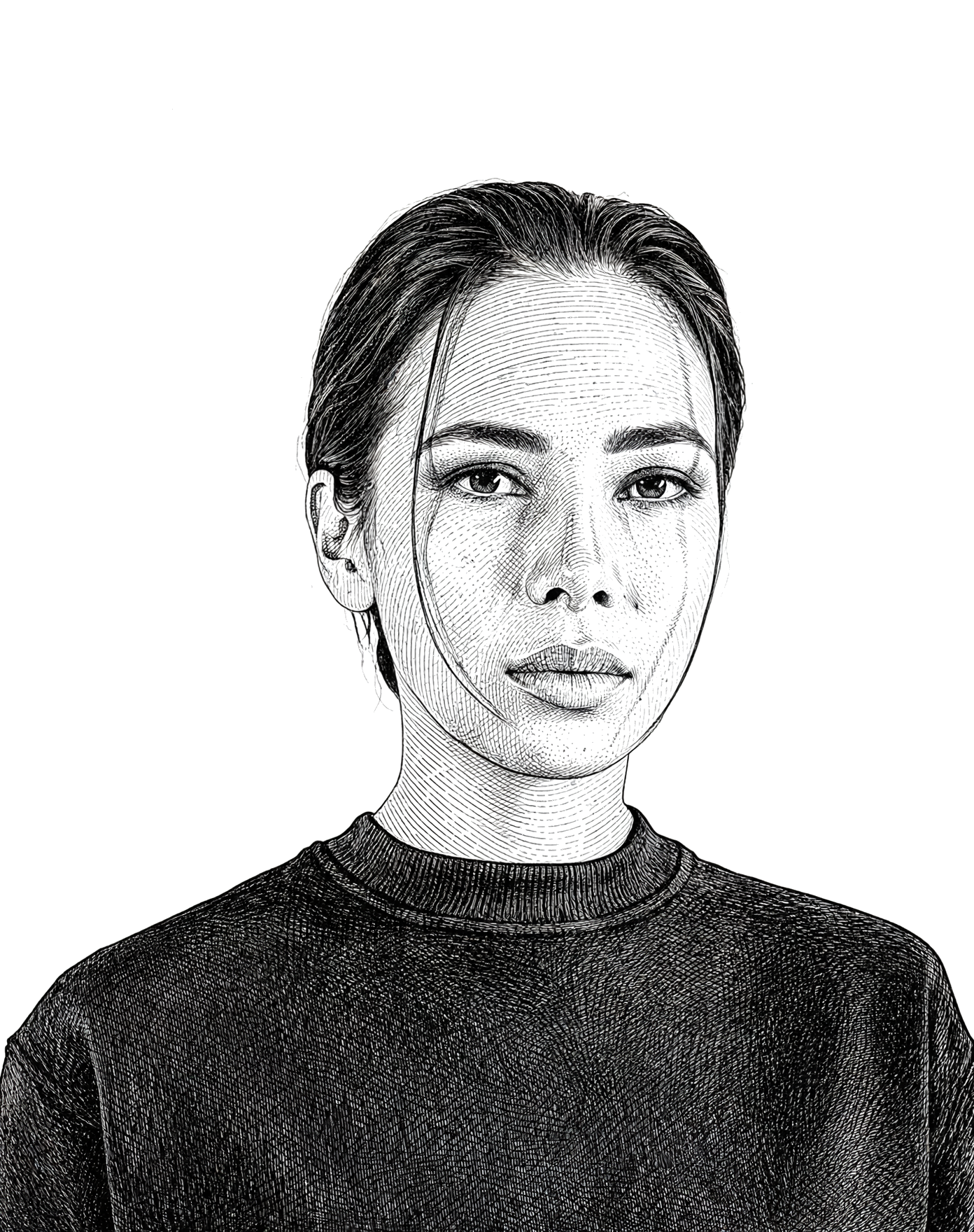
Elevating Video B-Roll with Animated Drawing Overlays
Modern documentary and explainer videos frequently use line-art overlays to highlight products, outline architectural features, or trace portraits over live footage.
Speedpaint makes this effortless by allowing creators to generate clean line art animations with transparent backgrounds.
Step-by-Step Compositing Workflow
1. In Speedpaint Studio
1. Upload your subject image. 2. Select Clean Line Art style. 3. In Background settings, select Transparent Canvas. 4. Render and download the MP4 video.2. In Premiere Pro / DaVinci Resolve
1. Place your primary b-roll or talking head video on Track V1. 2. Place the Speedpaint drawing video on Track V2 directly above. 3. Set the Blend Mode of V2 to Multiply (for black ink over light footage) or Screen / Add (for white ink over dark footage). 4. Scale and position the drawing overlay to match the frame.3. In CapCut (Desktop & Mobile)
1. Add your background video to the main timeline. 2. Tap Overlay -> Add Overlay and select the drawing video. 3. Tap Blend -> Select Darken or Filter to composite the line work seamlessly.Turn any photo into a drawing video
Get started with 200 free trial credits ($2.00 value · 10 videos). 1080p and 4K MP4 export. No subscriptions.
Tags: #Video Editing #Premiere Pro #CapCut #DaVinci Resolve #Compositing #Alpha Channel